Introduction
Introducing ShapeX for Excel
ShapeX, Animated Shape Class with Easing for Excel (32bit or 64bit, Version 16, Office 365) · Unlock the Potential of Shape Animations with this Feature-rich Class
Here is a powerful Shape Class for Excel called 'ShapeX' a bit like Elon Musk's 'SpaceX' but much, much better! This piece of work has been long in the pipeline and with Xmas 2023 I found myself having a weeks holiday over the festive period for about the first time in twenty years and I set out to accomplish my 'ultimate' Shape Animation Class. ShapeX has been written from scratch, aside from the Easing functions I ported way back from their respective JavaScript equivalents. I then put the entire project on hold and it sat there (doing nothing really) until I finally got around to completing it in October 2024! Therefater I forgot about it completely until December 2025! So, enjoy if you feel like taking it for a spin ...
Shapes are stored in ShapeX as a ShapeXCollection Object. Once a Shape has been added to the Class, you can refer to it within the ShapeXCollection either by its Index or by its Name ie. '1' or 'Preloader1". Standard Shape Property's and Methods for ShapeX Shapes are not required as ShapeX exposes the native Shape Objects Property's and Methods directly via its own abstract 'Interface' Property. To set 'some' Property where 'X' is the instantiated, ShapeX Class Object, you can do this: 'X.Interface(2).Width = 100' and to read a Property, you can do this: 'Debug.Print "Width: ", X.Interface(2).Width' or this: MsgBox X.Interface("Preloader2").Width. Another plus point of exposing the native Class Property's and Methods is that you can still use the Intellisense
ShapeX allows Tweening (moving left, right, up and down) applying easing to the motion to make it appear more realistic. You can also fade Shapes beautifully. You can apply subtle click effects to your Shapes, which looks great when used with a Button Shape
You are purchasing Version 1.1
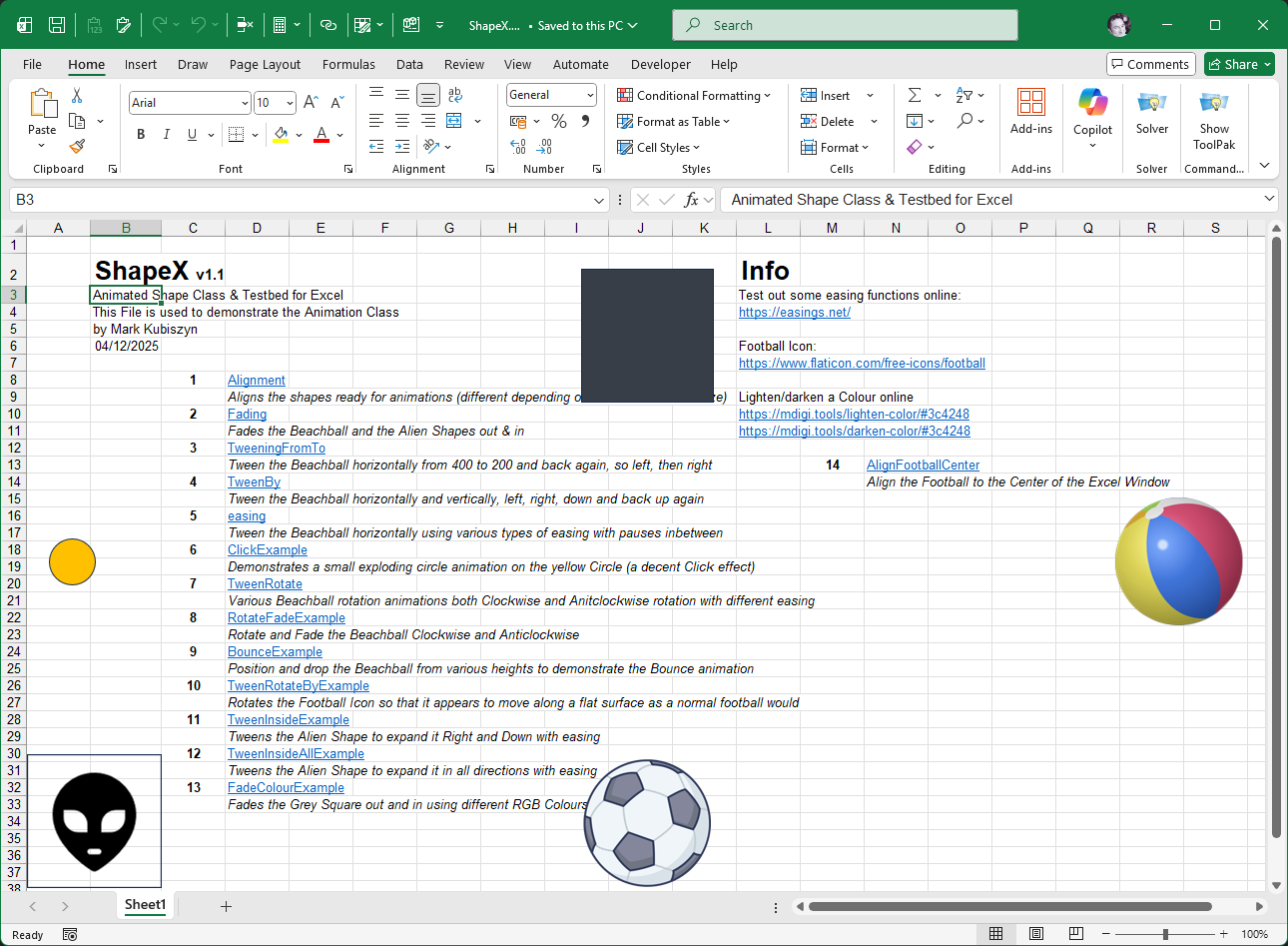
The Screen Shot below uses a variety of Shapes to demonstrate what the Class is capable of and how you can write the code to move and animate stuff
If you love ShapeX, you may also like any of the following Software
Rotor · LightboxIcon · LightboxAnimatedGif
Prerequisites
- Microsoft Excel 2016 Version 16 (32bit or 64bit) · designed for Office 365 Windows 11
- Basic to moderate Excel Skills and some moderate VBA skills to get the most out of the ShapeX Collection Class
- Windows PC · NOT a Mac!
- No support is provided for customization of this Software
Features
- A powerful feature-rich Shape Class that encapsulates the native Shape Object into a Collection of ShapeX Objects with Animation Methods like Align(), Fade() and TweenFromTo()
- Align a Shape within the Visible Active Window at any one of 9 different 'mso' positions using 'msoAlignLefts' or 'msoAlignCenters' via the Align() Method of the Class
- Fade a Shape in or out using the Fade() Method of the Class
- Move the Shape with Easing using the Tween() Method of the Class
- Add as many Shapes as you like to the Class using the Add() Method
- Property's are not required as the Shapes native Interface is exposed via the ShapeX's own abstract 'Interface' Property and can be set like this (X is the ShapeX Class Object):
X.Interface(2).Width = 100, or read like this:
Debug.Print "Width: ", X.Interface(2).Width - Use the AbsX() and AbsY() Absolute Window Coords for Shape positioning. You just 'Wrap Up' your normal values for an X/Y position like this: AbsX(200) or AbsY(100) and they become, you guessed it absolute positions within the Worksheet OR in other words positions within the Active Window Visible Range. This Visible Range is set everytime you scroll or resize your Excel Window and these values combined with the Align() Method cover partial Columns and Rows in their logic for psitioning and alignment of all of the Shapes
Credits
All code written by Mark KubiszynFootball Icon by Flaticon
Installation (current version v1.1)
Open the 'ShapeX.xlsm' file and click on the 'Sheet1'. Go into the VBE (Visual Basic Editor) and examine the VBA Code
To use ShapeX in your own Projects open the 'ShapeX.xlsm' file and your own Macro-enabled Project. Then open the VBE (Visual Basic Editor) and drag the 'ShapeX' Class Module into your own Macro-enabled file; this is a required Module! You can also drag the 'mdExamples1' Code Module and / or the 'mdTestBedX' Code Module into your Project or better, just copy the Subroutines and / or test Code that you require into your own Code Modules
Usage
How to use ShapeX
Abstract
ShapeX is a powerful Shape Class for Excel called 'ShapeX' a bit like Elon Musk's 'SpaceX' but much, much better and it doesn't cost as much!
Property's
.Interface(IndexOrShapeName)
Methods
.Add() · .Align() · .ClickEffect() · .EmbedImage · .Fade() · TweenInside() · TweenFromTo() · Tween() ·TweenRotateFade() · TweenRotate() · TweenRotateFromTo() · TweenRotateFromTo2 · TweenRotateBy() · AbsX() · AbsY() · FrameTimer() · WaitForMilliseconds() · EasingFunction()
Shapes are stored in ShapeX as a ShapeXCollection Object. Once a Shape has been added to the Class, you can refer to it within the ShapeXCollection either by its Index or by its Name ie. '1' or 'Preloader1". Standard Shape Property's and Methods for ShapeX Shapes are not required as ShapeX exposes the native Shape Objects Property's and Methods directly via its own abstract 'Interface' Property. To set 'some' Property where 'X' is the instantiated, ShapeX Class Object, you can do this: 'X.Interface(2).Width = 100' and to read a Property, you can do this: 'Debug.Print "Width: ", X.Interface(2).Width' or this: MsgBox X.Interface("Preloader2").Width. Another plus point of exposing the native Class Property's and Methods is that you can still use the Intellisense
Using the ShapeX Class in Excel
To use 'ShapeX' Class in Excel copy the 'ShapeX' Class Module into your own Project. You can open ShapeX and your own Macro-enabled Excel Project File and simply drag the Module across from one Project to another from within the Explorer Window. You can also Export and then Import the 'ShapeX' Class Module. All of the subroutines shown below are available in the purchased download File along with my Testbed() Subroutine
Loading your Shapes You can use any kind of Shape with or without Pictures/Images. I began writing ShapeX using two coloured Rectangles. To add two Shapes that are on your ActiveSheet into the 'ShapeXCollection' Property is straightforward. Instantiate a new 'X' Class Object and use the Add() Method. Add them using their Shape Name and be explicit by using Named Arguments and 'ThisWorkbook.'. Once Shapes are added you can refer to them within the Collection by their Index or by their Name ie. 1 or "preloader1" so being the power of the Collections Object. One tip := if instantiating a ShapeX Class for say a ClickEffect() Method linked to a Macro from a Shape, use the Shape Name as you may get muddled up if you have Shapes numbered/prefix/suffix 1,2,3 and you pass 3 instead of 1 (single ShapeX in the ShapeXCollection Object
Private Sub LoadShapes()

   ' instantiate.  let's go down the Elon Musk route and use an 'X'
   Dim X As ShapeX
   Set X = New ShapeX

   ' let's add a couple of Shapes to the ShapeX Class.  explicit!  use Named Arguments and ThisWorkbook for best practice
   X.Add TShape:=ThisWorkbook.ActiveSheet.Shapes("preloader1")
   X.Add TShape:=ThisWorkbook.ActiveSheet.Shapes("preloader2")

   ' destroy
   Set X = Nothing

End Sub
Setting Property's & using Methods of the Native Shape Object via the ShapeX Abstract 'Interface'
ShapeX lets you use the native Shape Class Property's and Methods via its abstract, 'Interface' Property so you can get or set any Property very easily via its Index or ShapeName ie. '1' or 'preloader2'
   ' Get
   Debug.Print "Width: ", X.Interface("preloader2").Width

   ' Set
   X.Interface(2).Width = 100
Aligning your ShapeX's using the Align() Method
Okay so we loaded two Shapes (I started off with two simple rectangles for testing). Before I added any Pictures to my Shapes I wanted to test out some Methods like the Shape alignment. You have one of 9 different positions to align your Shapes to or of course you can just place them anywhere. Anyhow all of the configurations are listed below (centers and middles are interchangable):
   X.Align IndexOrShapeName:=1, VerticalPosition:=msoAlignTops, HorizontalPosition:=msoAlignLefts
   X.Align IndexOrShapeName:=1, VerticalPosition:=msoAlignCenters, HorizontalPosition:=msoAlignLefts
   X.Align IndexOrShapeName:=1, VerticalPosition:=msoAlignBottoms, HorizontalPosition:=msoAlignLefts
   X.Align IndexOrShapeName:=1, VerticalPosition:=msoAlignTops, HorizontalPosition:=msoAlignCenters
   X.Align IndexOrShapeName:=1, VerticalPosition:=msoAlignCenters, HorizontalPosition:=msoAlignCenters
   X.Align IndexOrShapeName:=1, VerticalPosition:=msoAlignMiddles, HorizontalPosition:=msoAlignMiddles
   X.Align IndexOrShapeName:=1, VerticalPosition:=msoAlignBottoms, HorizontalPosition:=msoAlignCenters
   X.Align IndexOrShapeName:=1, VerticalPosition:=msoAlignTops, HorizontalPosition:=msoAlignRights
   X.Align IndexOrShapeName:=1, VerticalPosition:=msoAlignCenters, HorizontalPosition:=msoAlignRights
   X.Align IndexOrShapeName:=1, VerticalPosition:=msoAlignCenters, HorizontalPosition:=msoAlignRights
With my two coloured Rectangles (Shape 1 is the Blue Square, Shape 2 is the Orange Square) , running these two lines gives me the following Shape alignment shown in the image below. The Blue Square if perfectly aligned to the far right of the Active Window and centered halfway down, whereas the Orange Square is glued to the bottom left of the Active Window, both showing their '1 pixel' Borders, nice ;)
   X.Align IndexOrShapeName:=1, VerticalPosition:=msoAlignCenters, HorizontalPosition:=msoAlignRights
   X.Align IndexOrShapeName:="preloader2", VerticalPosition:=msoAlignBottoms, HorizontalPosition:=msoAlignLefts
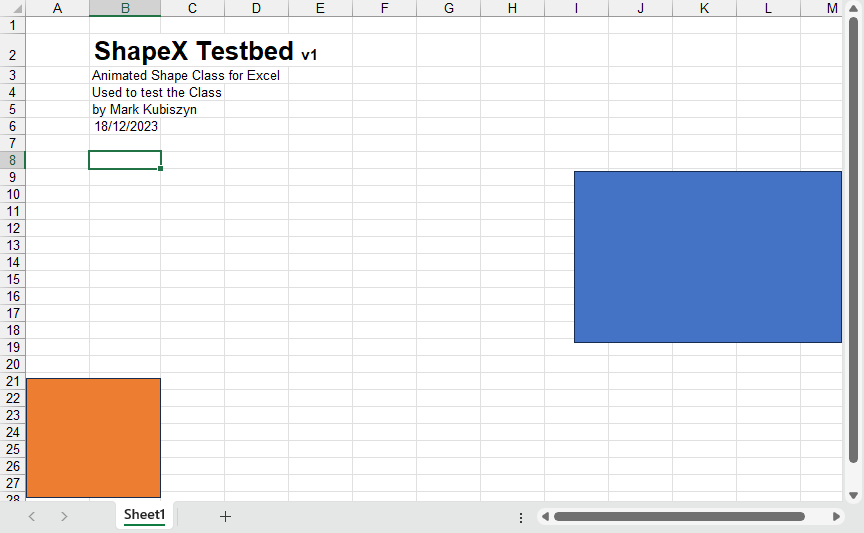
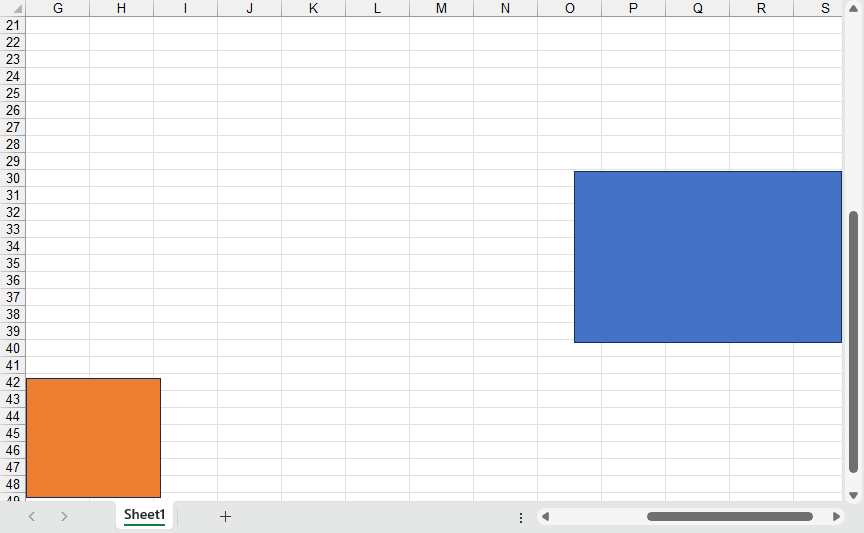
And, if I scroll down and across the Workbook to a random location and run the Code again, the Shapes are perfectly realigned in the Active Window as before albeit at different Rows and Colums, double nice ;) The alignment routine was probably the hardest part of this entire Class to write but worth the effort! Even if you scroll so that half the Column or Row is showing, the code will work for partial Columns and Rows, tweaking them to allow the alignment. Please note: You also have the ability to use two other Optional Parameters with the ALign() Method. You can use the OffsetX and OffsetY Parameters with the Align() Method to avoid placing Shapes too close to the Excel Active Window. The Active Window acts as a boundry for Shapes of which they are unable to cross - using a Click effect for example on a Shape that is too close to the Active Window edges may result in the animation moving slightly to the right or left which is not the result that you want! These two little Parameters allow you to Nudge in a Horizontal or Vertical direction. You can use both positive and negative fractional values ie. 10.05 or -6.25
Fading your Shapes using the Fade() Method
Fading your Shapes in and out is easy using this Class. You can use either the Shape Index or its Name. Multiple parameters allow for a smooth configuration. Using named arguments is easier and you can omit some or all of the optional parameters. The FromTransparency Parameter and the ToTransparency Parameter are interchangeable and values are reversed to indicate a fade in or out - think of a Transparency value of '100' as completely invisible whereas a Transparency value of '0' as completely visible (zero Transparency). The FrameStep Parameter is the number of Frames allowed for the animation and the FrameSpeed Parameter is the timing of the Frame Timer, so 0.01 is 1/100th of a second or '10 milliseconds'. A millisecond (from milli- and second; symbol: ms) is a unit of time in the International System of Units equal to one thousandth (0.001 or 10−3 or 1/1000) of a second and to 1000 microseconds. Play around with these settings to give your animation a smooth, polished look and feel
Here is some Code to fade my two coloured Squares out and then back in again. I have added a little Video with a slight pause in the Code so that you can see what is going on - the Shapes outlines are left untouched during the Fades. The WaitForMilliseconds() Method allows you to control time in Milliseconds of course. You could change this to seconds but I like the high precision and in reality I don't need to wait or pause anything for that long so in true JavaScript style, I just pass in Milliseconds!
   X.Fade IndexOrShapeName:=1, FromTransparency:=0, ToTransparency:=100, FrameStep:=5, FrameSpeed:=0.01
   X.WaitForMilliseconds 1000
   X.Fade IndexOrShapeName:="preloader1", FromTransparency:=100, ToTransparency:=0, FrameStep:=5, FrameSpeed:=0.01
   X.WaitForMilliseconds 1000
   X.Fade IndexOrShapeName:=2, FromTransparency:=0, ToTransparency:=100, FrameStep:=5, FrameSpeed:=0.01
   X.WaitForMilliseconds 1000
   X.Fade IndexOrShapeName:="preloader2", FromTransparency:=100, ToTransparency:=0, FrameStep:=5, FrameSpeed:=0.01
This is a video of ShapeX as it runs Fades on two coloured Squares. You can scroll around and then run the same Code - the Squares will be perfectly aligned in the Active Window and then the Fade routines will animate the Shapes again - the Shapes outlines are left untouched during the Fades. Music is 'Manifest It - NEFFEX' (Caution: music contains explicit lyrics - listen at your own risk)
A Word on Absolute Positioning using ShapeX
ShapeX has the ability to do a lot of Shape manipulation and animation, however this is all good but what if you need to be able to allow a user to scroll through to somewhere or someplace in the Worksheet and then view an animation? Well ShapeX has inbuilt ability to use Active Window Coords or 'AbsX()' and 'AbsY()', Absolute values as I like to call them in this Class. These two Methods allow you to disapply the standard logic of positioning (Top Left being 1,1) and apply some real-time, spacial awareness, positioning logic so as to animate Shapes, seemlessly anywhere in the Workbook even for partial Column and Rows. To use the AbsX() and AbsY() you just 'Wrap Up' your normal values for an X/Y position like this: AbsX(200) or AbsY(100) and they become, you guessed it absolute positions within the Worksheet OR in other words within the Active Window Visible Range. This means that if you want them to, these positions will apply wherever a user scrolls within the Worksheet. Here is a Code snippet to position Shape 1 ("preloader1") at 400 X 200 in the Active Window Visible Range - the Range of Cells that are visible in the main Excel Window at any time governed by the size of your Excel Window and taking into account the Scrollbars, Ribbon etc. - so not 400 X 200 but 400 X 200 within the snapshot of your currently positioned view
X.Interface(1).Left = X.AbsX(400): X.Interface(1).Top = X.AbsY(200)The Click Effect (a Gorgeous Small Exploding Circle Animation)
This is one of my infamous coding highlights, from way back when I wrote my 'xlui' pack and purchased the Domain! The domain has long since gone but I remembered the Shape Click, one of my favourites, so I added it into this Project. You can use the Click by a Mouse in a number of ways to produce a lovely Click circle animation on a Shape, either directly automated via this Class or write a small Macro, instantiate a ShapeX Class Object, use the Add() Method to attach a Shape and then link it to that piece of Code so that whenever a user clicks the Shape the Code runs and the animation appears. Here is a single line of Code that will produce a Click effect on a Shape called "preloader3"
X.ClickEffect IndexOrShapeName:=3, Size:=45, Colour:=RGB(219, 128, 0)And here is a Macro that you can link to a Shape/Button to also produce the Click effect. You should experiment with the Size, Colour, Growth and Speed Parameters. The Size Parameter is obvious - it is the size of the added 'msoShapeOval' Shape, the Click Shape that first appears. The Colour is the Colour of the Click Shape. Tip, if your Button is Yellow go for a deep Yellow or Orange Colour. The Growth is an amount in pixels added to the Width as it runs through the animation and the Speed is again in Milliseconds being 0.08 by default which is 80 Milliseconds. Be aware that when positioning Shapes that use the Click effect, to position them further from the edges of the Active Window as they cannot overrun the bounds of the Window - they are constained within these Parameters and as such the Click effect will move to the side as it animates which won't look good and is not what you want! Remember you can use the OffsetX and OffsetY Parameters with the Align() Method to avoid this
Public Sub ClickExample()

   ' instantiate
   Dim X As ShapeX
   Set X = New ShapeX

   ' add a Shape.  this isShape from where the Click effect will appear or be triggered via linking to this Macro
   X.Add ThisWorkbook.ActiveSheet.Shapes("preloader3")

   ' add the Click effect, a small exploding circle animation.  you can adjust the Size, Colour, Growth and Speed Parameters
   X.ClickEffect IndexOrShapeName:="preloader3", Size:=45, Colour:=RGB(219, 128, 0)

   ' destroy
   Set X = Nothing

End Sub
This is a video of ShapeX as it runs the ClickEffect() Method on a small Yellow Circle. You can move the Circle and then run the same Code - the Click effect will persist wherever you are in the Worksheet. Music is 'No Filter - NEFFEX' (Caution: music contains explicit lyrics - listen at your own risk)
Tweening a Shape using ShapeX
Tweening something in this Project is primarily to 'move' it. Tweening uses 'Easing Functions' which apply some mathematical effect to demonstrate acceleration or deceleration but to start with we will just use a linear easing function to keep things simple. Moving a Shape left and right or up and down on the Hrizontal and Vertical Axis is straightforward. There are two types of Tween Methods available to you, a TweenFromTo() Method and a Tween() Method. The first is an absolute, I want to move my Shape from X to Y ie. TweenFrom '400' TweenTo '200' so if Horizontal movement, then left, the logic being the first value is greater than the second value, and the second is to move my Shape exactly N amount ie. TweenBy '10'. move right 10 points, easy, eh!
When Tweening, you can use the Absolute positioning or omit it if you are running animations within the scrolled area ie. Cells(1,1), "A1" is top, left of your Active Window. You will notice in the video below that I am not positioned at the top, left of the Worksheet, hence I use Absolute positioning. Here is the Code to Tween a Beachball from points 400 to 200 anywhere in the Worksheet. Parameters include Direction, being Horizontal or Vertical (there is no need for a left or a right here, swapping the values is enough for the Code to know which way, on what Axis it is tweening the object), Easing, the easing type (there are over 20 easing functions available to you), TweenFrom is the position to move from, TweenTo is the position to move to, TweensPerSecond are the number of tweens made in a second (the less the number, the faster the Shape will appear to travel, but using less may make the Shape appear to jump as opposed to actually move), meaning that you will see 24 and lastly, FramesPerSecond being the speed at which the routine is ran
   X.TweenFromTo IndexOrShapeName:=1, Direction:=THorizontal, Easing:=easeLinear, TweenFrom:=X.AbsX(400), TweenTo:=X.AbsX(200), TweensPerSecond:=24, FramesPerSecond:=40
   X.TweenFromTo IndexOrShapeName:=1, Direction:=THorizontal, Easing:=easeLinear, TweenFrom:=X.AbsX(200), TweenTo:=X.AbsX(400), TweensPerSecond:=24, FramesPerSecond:=40
Seeing it is better than a Screen Shot, so here is the Tweening action for the Code above. I switched from a Blue Square into a Beachball as it looked better. Further down I will show you how to embed the Images into ShapeX, Shapes. Here is a video of the Tweening. Music is 'Bite Me - NEFFEX' (Caution: music contains explicit lyrics - listen at your own risk)
With the Tween() Method by default a 'From' value is not req. and you just use 'TweenBy'. it will always be as per the current ShapeX's '.Left', '.Top' value. With Tween you do not have to care about Active Window positioning AFTER you have initially positioned your ShapeX with absolute Coords. Here is the Code to use the Tween() Method to move 100 oints left, right, down and back up again
   X.Tween IndexOrShapeName:=1, Direction:=THorizontal, Easing:=easeLinear, TweenBy:=-100, TweensPerSecond:=24, FramesPerSecond:=40
   X.Tween IndexOrShapeName:=1, Direction:=THorizontal, Easing:=easeLinear, TweenBy:=100, TweensPerSecond:=24, FramesPerSecond:=40
   X.Tween IndexOrShapeName:=1, Direction:=TVertical, Easing:=easeLinear, TweenBy:=100, TweensPerSecond:=24, FramesPerSecond:=40
   X.Tween IndexOrShapeName:=1, Direction:=TVertical, Easing:=easeLinear, TweenBy:=-100, TweensPerSecond:=24, FramesPerSecond:=40
And here is the video the Tweening in action moving just 100 points in all directions using simple linear easing. Here is a video of the Tweening. Music is 'Anxiety - NEFFEX' (Caution: music contains explicit lyrics - listen at your own risk)
Rotating a Shape using ShapeX
You can use the TweenRotate() Method to rotate a Shape with easing. The Shape will either be moved from a set position, say zero (0) to 360 or will move from its finish or statically set position ie. 90 degrees through a full 360 degrees back to 90 degrees again. You can apply this either Clockwise or Anticlockwise via the Direction Paramer, and use -90 or 270 to mean the same thing in relation to the Shapes rotational position. Easing is calculated by the Method through the TweenFrames Parameter (default 30) which means the number of times that we will move the object -1, ie. easing will return 30 values from '1 := 0' to '30 :=360' and the object will move 29 times if slowed down, so it will never move on its first position of the cycle as this will be its start position. The easing calculation when debugged for a 'easeInSine' easing looks something like this as it starts off slowly and gently accelerates. These values will be applied to the '.Rotation' member of the ShapeX Class Shape. The TimerVisits Parameter is the number of times that we will revisit the timing over the duration of 1 second, ie. 60 per second, 1 / 60 = 0.0166666666666667 (or 0.02, every 20 Milliseconds). Last, the Repeat Parameter qallows you to run the same animation for as many times as specified ie. Repeat:=5, run the animation 5 times and then stop. By the way you can use precision up to 15 decimal places but as I write this, I have not yet found a reason to use this many places and so will round to 3 decimal places:
1. TClockwise, EasingValue: 0
2. TClockwise, EasingValue: 0.528
3. TClockwise, EasingValue: 2.11
4. TClockwise, EasingValue: 4.742
5. TClockwise, EasingValue: 8.417
6. TClockwise, EasingValue: 13.122
7. TClockwise, EasingValue: 18.845
8. TClockwise, EasingValue: 25.568
9. TClockwise, EasingValue: 33.273
10. TClockwise, EasingValue: 41.936
11. TClockwise, EasingValue: 51.531
12. TClockwise, EasingValue: 62.032
13. TClockwise, EasingValue: 73.406
14. TClockwise, EasingValue: 85.622
15. TClockwise, EasingValue: 98.642
16. TClockwise, EasingValue: 112.428
17. TClockwise, EasingValue: 126.941
18. TClockwise, EasingValue: 142.137
19. TClockwise, EasingValue: 157.973
20. TClockwise, EasingValue: 174.401
21. TClockwise, EasingValue: 191.373
22. TClockwise, EasingValue: 208.84
23. TClockwise, EasingValue: 226.75
24. TClockwise, EasingValue: 245.051
25. TClockwise, EasingValue: 263.69
26. TClockwise, EasingValue: 282.611
27. TClockwise, EasingValue: 301.758
28. TClockwise, EasingValue: 321.077
29. TClockwise, EasingValue: 340.51
30. TClockwise, EasingValue: 360
And the Code to perform the rotation of a Shape, first Clockwise, and then after a brief pause, Anticlockwise
   ' TweenRotate() Method
   ' Clockise & AntiClockwise with Reset = True meaning always start at zero (0). explicitly set the initial rotation for testing
   X.TweenRotate IndexOrShapeName:=1, Direction:=TClockwise, easing:=easeInSine
   X.WaitForMilliseconds 1000
   X.TweenRotate IndexOrShapeName:=1, Direction:=TAntiClockwise, easing:=easeInSine
This is a video of ShapeX as it runs a rotation on the Beachball with an 'easeInSine' easing function. Music is 'Manifest It - NEFFEX' (Caution: music contains explicit lyrics - listen at your own risk)
Rotating & Moving a Shape by a set Amount using ShapeX
You can also move a Shape whilst rotating by a set amount using the TweenRotateBy() Method - useful if you want to use a Keypress for example to move 50 points right or 50 points left. The Code to do this goes something like this (again the Millisecond pauses are just to demonstrate the actions in a timely manner)
Public Sub TweenRotateByExample()

   ' instantiate.  let's go down the Elon Musk route and use an 'X'
   Dim X As ShapeX
   Set X = New ShapeX

   ' add a Shape
   X.Add ThisWorkbook.ActiveSheet.Shapes("preloader1")

   ' TweenRotateBy() Method
   X.Interface(1).Rotation = 0
   X.WaitForMilliseconds 1000
   X.TweenRotateBy IndexOrShapeName:=1, Direction:=THorizontal, easing:=easeInQuad, TweenBy:=200, TweensPerSecond:=24, FramesPerSecond:=40
   X.WaitForMilliseconds 500
   X.TweenRotateBy IndexOrShapeName:=1, Direction:=THorizontal, easing:=easeInQuad, TweenBy:=-200, TweensPerSecond:=24, FramesPerSecond:=40
   X.WaitForMilliseconds 500
   X.TweenRotateBy IndexOrShapeName:=1, Direction:=TVertical, easing:=easeInQuad, TweenBy:=100, TweensPerSecond:=24, FramesPerSecond:=40
   X.WaitForMilliseconds 500
   X.TweenRotateBy IndexOrShapeName:=1, Direction:=TVertical, easing:=easeInQuad, TweenBy:=-100, TweensPerSecond:=24, FramesPerSecond:=40

   ' destroy
   Set X = Nothing

End Sub
Rotating & Moving a Shape at the same time using ShapeX
So I developed a couple of Methods to Rotate and Move a Shape. Why two? Well I am not sure if I have the logic correct yet for movement with tweening and easing plus rotational spin and how the two correlate! Googling Spin and Acceleration did not help me either. So the first Method, TweenRotateFromTo(), animates the ShapeX's with easing and rotation using explicit TweenFrom and TweenTo values as its destination with linear easing used for the rotation. I believe that as an object accelerates, then the spin of that object also increases, but I am not absolutely confident, nor completely convinced of this fact, so the second Method, TweenRotateFromTo2(), animates the ShapeX's with easing and rotation using explicit TweenFrom and TweenTo values as its destination. easing is applied throughout this time TweenFrom until TweenTo-TweenFrom with linear easing plus a coefficent which is a Multiplier of the difference between the easing gap (for wahtever easing function is chosen) and the linear easing gap. This is then either used as a multiplier or whilst test think I just added it into the linear easing, not perfect but I can always revist this process. Annyhow here is a video of what I managed to achieve using these two Methods on the Beachball
This is a video of ShapeX as it runs a rotation with easing and movement on the Beachball - watch outfor the cheeky little bounce with the Beachball still rotating, I made at the end of the animations (of course you could just use 'easeOutBounce' but I was messing around! Music is 'Manifest It - NEFFEX' (Caution: music contains explicit lyrics - listen at your own risk)
Rotating & Fading a Shape at the same time using ShapeX
I also developed a Method called TweenRotateFade() to rotate and fade a Shape at the same time, so you can start it rotating as it fades in and then have it rotating as it fades out as well
Here is a video of the Beachball fading in and out with rotation. Music is 'No Filter - NEFFEX' (Caution: music contains explicit lyrics - listen at your own risk)
Tween Inside with Easing using ShapeX
This Method allows you to adjust the internal sizes of a Shape ie. its Width and Height using easing with a TweenFrom Parameter and a TweenTo Parameter, so for a Square that is 100 X 100 I can Tween its Width from 100 to 200 and back again. I can Tween its Height from 100 to 200 and back again. I can do this using any of the easing functions. I have chosen the 'easeInSine' for the video below but you can pick any of the available functions. The Code to do this is show below together with a video of the animation
    ' Align() Method.  bottom left, 80 point up from the edge
    X.Align IndexOrShapeName:="preloader2", VerticalPosition:=msoAlignBottoms, HorizontalPosition:=msoAlignLefts, OffsetY:=-80

    ' TweenInside() Method.  demonstrates tweening the Width of the ShapeX froom 100 to 200 using an 'easeInSine' easing function
    X.TweenInside IndexOrShapeName:="preloader2", Inside:=TWidth, TweenFrom:=100, TweenTo:=200, easing:=easeInOutSine, TweensPerSecond:=24, FramesPerSecond:=60
    X.WaitForMilliseconds 1000
    X.TweenInside IndexOrShapeName:="preloader2", Inside:=TWidth, TweenFrom:=200, TweenTo:=100, easing:=easeInOutSine, TweensPerSecond:=24, FramesPerSecond:=60
Here is a video of the TweenInside() Method with an Orange Square. Music is 'Addict - NEFFEX' (Caution: music contains explicit lyrics - listen at your own risk)
Embed a Picture or Image (.jpg/.png etc.) into a Shape using ShapeX
You can simply load in images or pictures to any Shape, however I found issues when using transparency on Objects where I have simply added a Picture directly to Excel so a good technique and one that I have exposed for ShapeX is to allow you to Embed an image into a Shape. It is the EmbedImage() method. let's load in an online Image. Once loaded the image will be saved within Excel's Media Folder internally and will not need to be loaded again. Loading an image this way ensures that Transparency can be effectively used. You can use any image from your PC/Laptop, just change the Filename
   ' instantiate.  let's go down the Elon Musk route and use an 'X'
   Dim X As ShapeX
   Set X = New ShapeX

   ' Add() Method
   ' let's add a Shapes to the ShapeX Class.  explicit!  use ThisWorkbook for best practice
   X.Add ThisWorkbook.ActiveSheet.Shapes("preloader1")

   ' let's load in an online Image.  once loaded the image will be saved within Excel's Media Folder internally and will not need to be loaded again
   ' loading an image this way ensures that Transparency can be effectively used.  You can use any image from your PC/Laptop, just change the Filename
   X.EmbedImage IndexOrShapeName:="preloader1", Filename:="https://www.kubiszyn.co.uk/assets/img/beachball.png"

   ' destroy
   Set X = Nothing
Screen Shots
A Screenshot of ShapeX for Excel
FAQ
There are no frequently asked questions for ShapeX
Rotor Videos
This is a video of ShapeX running through some of the functionality available to you. Music is 'Hallow's Beach by Quincas Moreira'. View this video on YouTube
Shorts & Reels
Support
Please remember you have purchased very affordable Software and you have not paid for a full-time Software design agency - I am but one man. Occasionally I may help with small tweaks, but these requests will be put on a much lower priority due to their nature. You have not PAID for Support, Support is 100% optional and I provide it for your convenience, so please be patient, polite and respectful
Support (limited) for my Software includes
- Responding to questions or problems regarding the Software and its features
- Fixing valid (replicated) bugs and reported issues for the VERSION I HAVE WRITTEN
Software support does not include
- Customization and installation services
- Support for third party software or ANY kind of development whatsoever
Before seeking support
- Make sure your question is a valid Software Issue and not a customization request
- Make sure you have read through the FAQ's, online documentation and any related video guides before asking support on how to accomplish a task
- Ensure that you access to the VBOM is allowed and that Macros can run in Excel
- Make sure to provide 'proof of purchase' and state the name / version of the Software that you are having issues with when requesting support by Email or via Facebook
How to get Support
Contact Mark Kubiszyn on the Email address provided when you purchased the Software, including the Order Number
...or Contact Mark Kubiszyn via our Facebook Page - remember to be patient, if there has been an issue with your download, Mark will always respond within 48 hours and will Email you the File directly if neccessary or via Messenger. For other issues the response time may be considerably longer and I may choose to respond to specific questions only (as is my right), depending on what has been asked
Future Builds
* No ideas as yet!
Bug Fixes
No bugs have been reported for ShapeX
Credits
Test out some easing functions online
Easing functions easings.net/Icons
Football & Beachball www.flaticon.com/

Lighten / darken a colour online
Lighten Colour mdigi.tools/lighten-color/Darken Colour mdigi.tools/darken-color/
Changelog
Read more information on the status of each release below. The latest Version including a description of any changes is shown first
4.12.2025 - (Version 1.1)
General release of ShapeX Animation Class and Testbed for Excel